
Batch Runs and Scheduled Tasks
Select multiple test plans in the Web UI to run serially on one device, or create recurring regression tasks with cron expressions.
When you have multiple test plans for an App, Munk AI can run them in order on a single device, or save the same configuration as a scheduled task that triggers automatically on a fixed cadence.
This guide walks through the full Web UI flow: opening the batch run screen from the Dashboard, submitting an immediate run, creating and managing scheduled tasks, and reviewing results in Runs.
What you will do
- Open the Run and Scheduled Tasks screen from the Dashboard
- Select an App, a device, and multiple plans, then run them immediately
- Enable the scheduled task option, configure frequency, and create a schedule
- View, enable, disable, and manage tasks from the Scheduled Tasks list
Prerequisites
Before you start, confirm that:
- The local service is running:
munk serve --host 127.0.0.1 --port 16888 - Your AI provider is configured in Settings
- You have created the target App in Apps and at least one runnable plan in Tests
- The target device is visible and available in Devices
Tip: Scheduled tasks depend on munk serve staying up. If the local service stops, nothing will trigger at the scheduled time.
1. Open the batch run screen
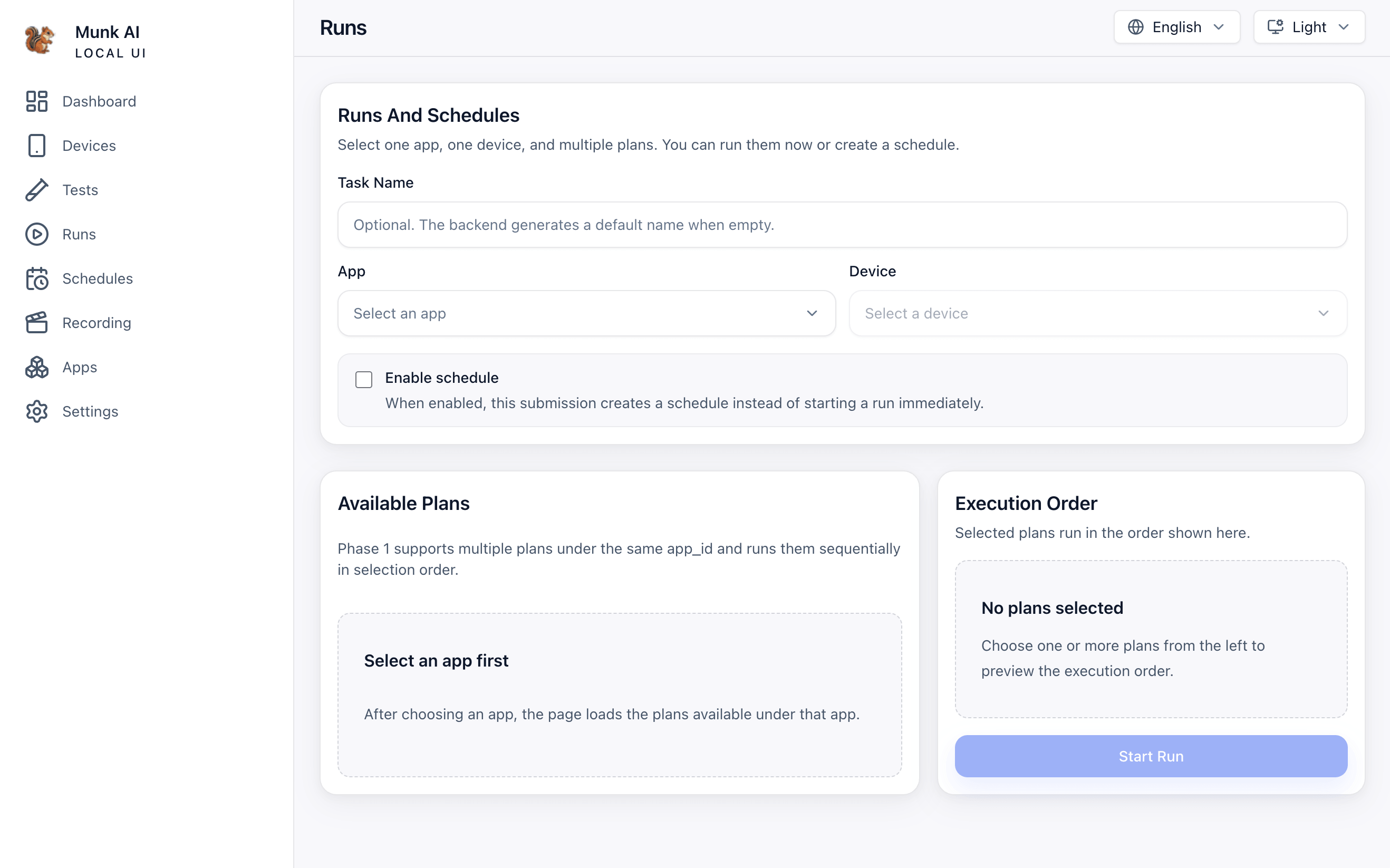
After opening the Web UI, click Run Tests in the top-right corner of the Dashboard or Tests page. This opens /runs/new.
The page title is Run and Scheduled Tasks. It is split into three areas:
- Top: basic task configuration (name, App, device, scheduled task toggle)
- Bottom left: available plans
- Bottom right: selected plan execution order and the submit button
2. Run immediately
If you only want to run now, leave Enable scheduled task unchecked and follow these steps.
2.1 Select an App and device
- Choose the target app from the App dropdown. After selection, the plan list loads on the left, and the device list is filtered by the app's platform.
- Choose a target device from the Device dropdown.
2.2 Select multiple plans
In Available Plans, click one or more plan cards to select them. Click again to deselect.
Tip: In the current release (phase one), only multiple plans under the same app_id are supported. They run serially in the order you select them. Cross-app selection and parallel plan execution are not supported yet.
The order you click plans is the final execution order. Each selected plan shows a sequence number in the top-right corner: 1, 2, 3, and so on.
2.3 Confirm execution order
The Execution Order panel on the right lists selected plans in sequence. Review the order here before submitting.
2.4 Start the run
Once App, device, and at least one plan are selected, click Start Running.
Munk AI submits a run_plans batch run and redirects you to that run's detail page. You can also find the run later under Runs in the sidebar.
2.5 Review results
A batch run creates a parent run with multiple child runs underneath—one child run per plan, executed in order.
On the run detail page you can see:
- Batch summary: total plans, completed count, overall verdict (passed / failed / inconclusive)
- Child run list: per-plan status, with links to case-level details, timeline, and artifacts
Use the parent run for overall progress. If a plan fails, open the corresponding child run to inspect individual cases.
3. Create a scheduled task
If you want the same set of plans to run automatically on a schedule, create a scheduled task instead of running immediately.
3.1 Enable scheduled task
Check Enable scheduled task. After that:
- The Cron schedule editor appears
- The submit button label changes to Create scheduled task
- The submission does not trigger a run immediately—it saves a schedule record instead
3.2 Configure frequency
The Cron editor provides common schedule templates and an advanced custom mode.
| Mode | Description | Fields to configure |
|---|---|---|
| Daily | Run at a fixed time every day | hour, minute |
| Weekdays | Run Monday through Friday (default) | hour, minute |
| Weekly | Run on a fixed weekday | weekday, hour, minute |
| Monthly | Run on a fixed day of the month | day, hour, minute |
| Advanced | Custom standard 5-field cron | cron expression |
The editor preview shows:
- Current expression: for example,
0 9 * * 1-5 - Timezone: your browser's local timezone at creation time (for example,
Asia/Shanghai) - Next run: the next trigger time once the expression is valid
Tip: The backend validates the final value as a standard 5-field cron (minute hour day month weekday). If a template does not fit, switch to Advanced and enter an expression directly—for example, */30 8-18 * * * (every 30 minutes between 8:00 and 18:00 on weekdays).
3.3 Task name (optional)
Task name is optional. If you leave it blank, the backend generates one automatically (usually based on the creation time).
For long-lived tasks, use a readable name such as "Todo nightly regression" or "Pre-release smoke".
3.4 Create and redirect
When configuration is complete, click Create scheduled task. On success, you are redirected to the Scheduled Tasks list at /schedules.
4. Manage scheduled tasks
4.1 Scheduled task list
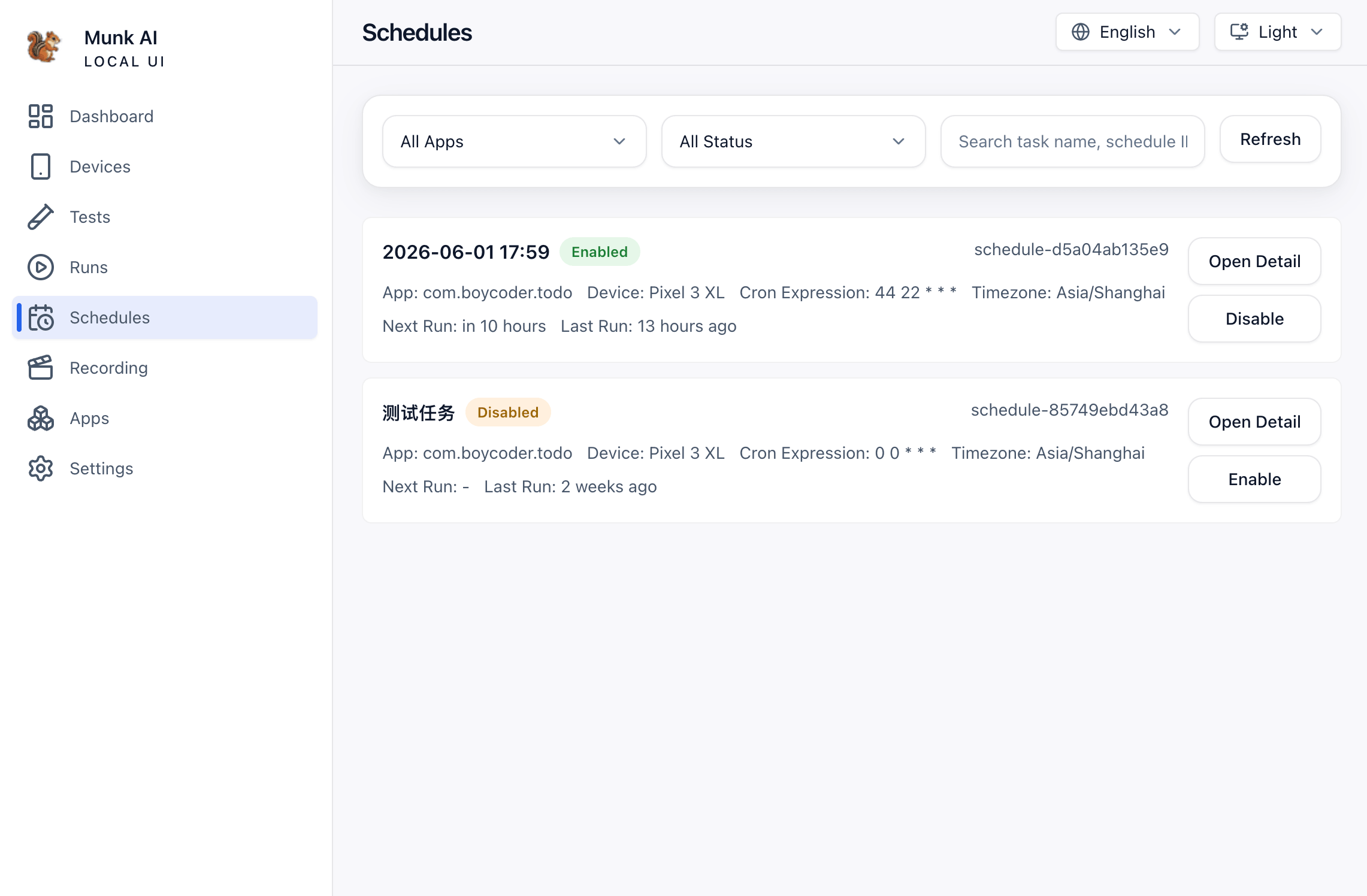
Open Scheduled Tasks from the sidebar to see all created schedules. The list supports:
- Filter by App
- Filter by status (all / enabled / disabled)
- Search by task name, task ID, or device keyword
Each card shows the name, enabled state, App, device, cron expression, timezone, next run, and last run.
4.2 Enable and disable
- Enabled tasks trigger automatically according to their cron while
munk serveis running - Click Disable to stop scheduling; Next run shows
- - Click Enable to resume scheduling; the system recalculates Next run
This is useful during maintenance, when a device is unavailable, or while debugging—without deleting the configuration.
4.3 View and edit details
Click View details to open a single scheduled task. From there you can:
- Review the full configuration and trigger history
- Click Edit to change the name, device, plan list and order, cron expression, or enabled state
- Jump from trigger history to the corresponding Runs detail page
Tip: The App cannot be changed when editing. Create a new scheduled task if you need a different App.
4.4 Trigger history
The Trigger history section on the detail page records each schedule-triggered run: trigger time, final status, and linked operation_id. Open the linked batch run detail to investigate whether a scheduled execution succeeded.
5. Execution model and limits
These rules help you configure tasks correctly and troubleshoot issues:
| Item | Behavior |
|---|---|
| Plan scope | Multiple plans under one App only |
| Device | One device per run |
| Execution | Plans run serially; order = selection order |
| Scheduling | Requires the munk serve background scheduler |
| Global dispatch | Only one schedule run is dispatched at a time to avoid device contention |
| Cron format | Standard 5-field cron; timezone is bound at creation time |
6. FAQ
Why is Start Running or Create scheduled task disabled?
Check that App, device, and at least one plan are selected. If scheduled task is enabled, also confirm the cron expression is valid and passes validation.
A scheduled task did not run at the expected time
Check the following:
- Is
munk servestill running? - Is the task enabled?
- Is the target device online and reachable by Munk AI?
- Do the cron expression and timezone match your expectation? (Verify Next run on the detail page.)
Can I select plans across multiple Apps?
Not in the current release. All plans must belong to the same app_id.
Do multiple plans run in parallel?
No. The current release runs plans one after another on the same device.
Do immediate runs and scheduled tasks use the same configuration?
Yes. Both use the same App, device, plan list, and order. The only difference is whether Enable scheduled task is checked at submit time.
7. Related capabilities
| Need | Recommended path |
|---|---|
| Run one plan | run plan in Execution Workflows |
| Debug one case | run case in Execution Workflows |
| Validate a code change | Verify Code Changes |
| No plan yet—create one first | Record & Replay or create a plan from the Dashboard |
| Target platform is a real iOS device | iOS Real Device Setup |
What's next?
- First time in the Web UI? Start with Getting Started to set up Apps, devices, and plans.
- Want the CLI paths for single plan or single case execution? Read Execution Workflows.